Setting Up a Translation Layer for Obsidian to Avoid Context Overflow
A detailed guide to configuring a Translation Layer (me.md, vault_map.md, skill_map.md) to optimize context for an AI Agent working inside Obsidian.
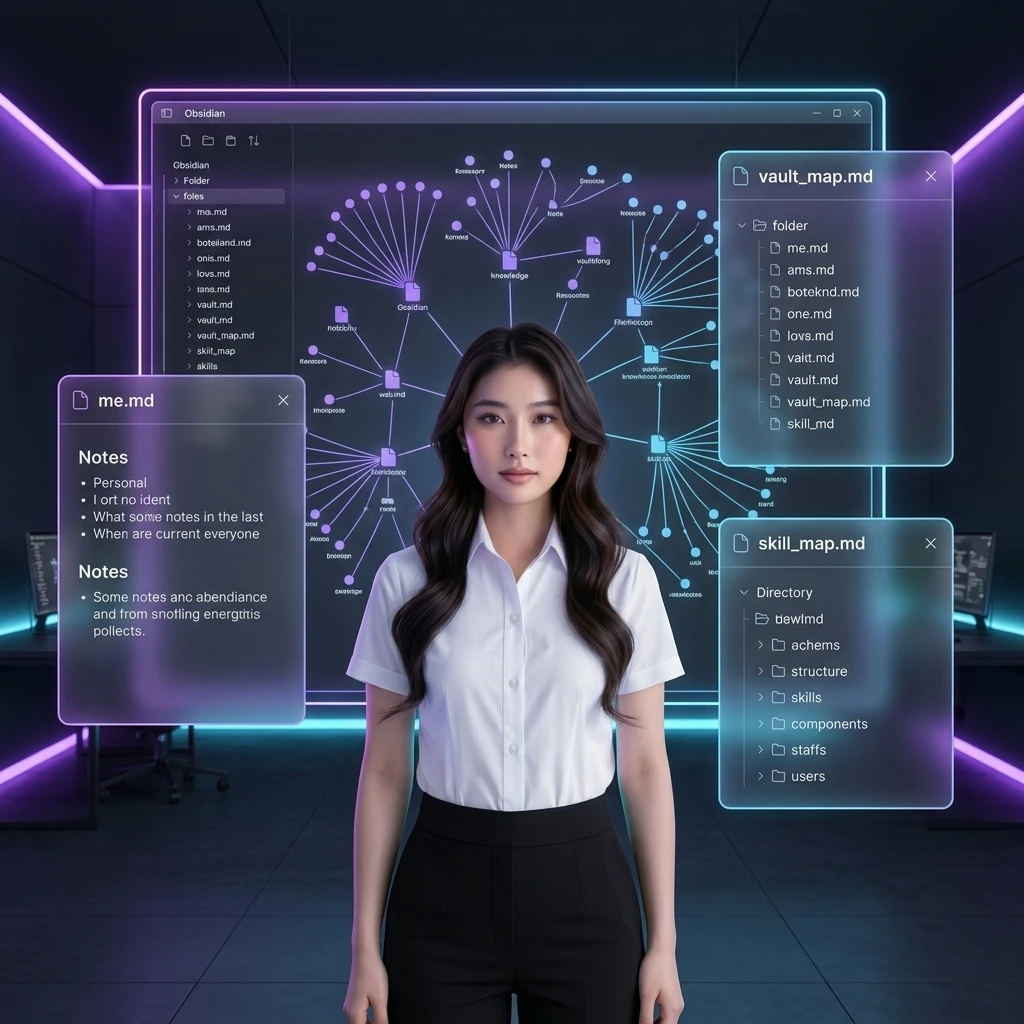
Setting Up a Translation Layer for Obsidian to Avoid Context Overflow
TL;DR: Context window depletion is the biggest nightmare when letting an AI Agent read an Obsidian notes vault. By setting up an intermediate Translation Layer through a flat set of four navigation files (
me.md,vault_map.md,skill_map.md, andCLAUDE.md), you guide the AI to precisely locate the knowledge area it needs, optimize access speed, and significantly cut token consumption.
When people start connecting powerful AI tools like the Claude Code CLI or Copilot to their Obsidian Vault, most newcomers make one fatal mistake: telling the AI to scan the entire root folder to find information.
If your folder only has a few dozen files, the system responds quickly. But once your knowledge base grows to hundreds or thousands of notes, transcripts, scraped articles, or PDF documents, an AI trying to read all that data at once will instantly deplete its context window. The AI will start throwing errors, begin hallucinating, or burn through your entire API budget after just a few simple questions.
The definitive solution to this problem is setting up an intermediate Translation Layer.
What is a Translation Layer?
Direct answer: An intermediate Translation Layer in Obsidian is an isolated folder (named
/aios/) containing a set of Markdown files that act as a "context navigation map" to tell the AI Agent exactly: who you are (me.md), what your folder structure looks like (vault_map.md), and which skills the AI is allowed to invoke (skill_map.md).
Instead of letting the AI freely scan the entire drive at random, the Translation Layer acts as an intermediate router, forcing the AI to read the navigation files first, so it can pinpoint the exact 2–3 files it actually needs for the current session.
[AI Agent] ──► Reads CLAUDE.md ──► Reads aios/vault_map.md ──► Only opens the necessary note files (Context Optimized)
A guide to setting up the 4 core configuration files
Create a separate folder named aios/ right at the root of your Obsidian Vault, and set up the following 4 files:
1. The Personal Identity file (aios/me.md)
This file stores your own thinking style, habits, and working conventions so the AI plays the correct role.
- Main contents:
- Your self-positioning (e.g., Founder, Tech Lead, Marketer).
- The tone required (Quiet Authority: professional, practical, no hype).
- Text formatting conventions (e.g., always write in Vietnamese, capitalize the first letter of Wiki file names, use comparison tables).
2. The Knowledge Base Map file (aios/vault_map.md)
This document teaches the AI to understand your Vault's folder structure without scanning the entire drive.
- Example structure:
# Obsidian Knowledge Base Map
- `raw/articles/`: an isolated folder for raw material scraped from the web (Read-Only for AI).
- `wiki/`: where atomic knowledge nodes are stored, already structured and cross-linked by AI.
- `concepts/`: contains central hub pages (e.g., AI_Agent.md, Funnel_Marketing.md).
- `workflow/`: stores Python scripts and automation processes (SOPs).
3. The Skill Map file (aios/skill_map.md)
Where you declare all the automation scripts or background Agent systems you've authorized the AI to use (e.g., a broken-link cleanup skill, an automatic YouTube summarization skill).
4. The Gateway file (CLAUDE.md)
This file sits right at the root folder of Obsidian. It acts as the mandatory first touchpoint (router) the AI Agent must read the moment a new session starts.
- Required content in CLAUDE.md:
# CLAUDE.md - PROJECT BRAIN
## Core Rules
- Before executing any command, you MUST read `aios/me.md` to understand the working style, and `aios/vault_map.md` to understand the folder structure.
- NEVER scan the entire root folder. Only open a maximum of 5 most-relevant files at once.
- Always use the bidirectional link syntax `[[Page_Name]]` when creating new notes that reference existing concepts.
3 tips for controlling and preserving the AI's context window
Direct answer: To keep an AI Agent's context window clean and cost-optimized, apply 3 practical techniques: a strict file-open limit, a fast session-initializer prompt, and periodic janitor cleanup.
- A strict file-open limit rule: Configure
CLAUDE.mdto require the Agent to open a maximum of 3–5 files at once. When it needs cross-referencing, the Agent must automatically close old files before opening new ones. - Use a session-initializer shortcut: Set up a text-expansion shortcut on your computer to quickly paste a startup prompt for the AI at the beginning of every new session:
"Please read aios/me.md right now to understand my writing style, read aios/vault_map.md to know the folder structure, and aios/skill_map.md to identify available skills. Report briefly once done."
- Run a periodic cleanup linter: Use plugins that trim whitespace, merge notes that are too small, and remove broken links, to keep your note files as pure minimal text — minimizing the raw character volume the AI has to load into memory.
Conclusion
Building an intermediate Translation Layer isn't just a technical fix for context-window overflow — it's a design philosophy that lets you fully own your data. Your notes stay as flat local Markdown files on your machine, independent of any AI provider.
Once your Translation Layer is set up, the next step is building autonomous background Agents to automate cleanup and system operation. Read on to Building 6 Autonomous Agent Systems to Run an Obsidian Knowledge Base Sắp ra mắt 04/08, or revisit the core philosophy in The LLM-Wiki Philosophy: Turning Obsidian Into an IDE for AI Agents.
#toilatung #obsidian #secondbrain #contextwindow #aios #translationlayer
Khám Phá Kho Workflow & SOP AI Thực Chiến
Thư viện quy trình, SOP vận hành và công cụ AI tôi đang dùng thật cho hệ thống của mình — chọn đúng thứ bạn cần.

Bài Liên Quan

Triết Lý LLM-Wiki: Biến Obsidian Thành IDE Cho AI Agent

Xây Dựng Hệ Thống Nghiên Cứu AI Tự Động Với NotebookLM và...